> ## Documentation Index
> Fetch the complete documentation index at: https://semgrep-ee9d73d8-chore-update-openapi-specs.mintlify.site/llms.txt
> Use this file to discover all available pages before exploring further.
# Collecting Semgrep GitHub Actions logs from GitHub
To retrieve a log, perform the following steps:
Navigate to the main page of the GitHub repository you are troubleshooting or scanning.
Click the **Actions** tab.
 In the Actions page, click the Semgrep workflow run that you want to retrieve logs for. The name depends on your configuration. By default, it is named **Semgrep**.
**TIP**
Your repository may have different workflow runs, such as linters. To quickly browse through workflow runs, you can also click the name of your workflow, typically **Semgrep** under **Actions** in the navigation bar to view only Semgrep runs.
Click the job name, typically **semgrep/ci**.
You are taken to the specific job page. Click the gear icon **> Download log archive**.
In the Actions page, click the Semgrep workflow run that you want to retrieve logs for. The name depends on your configuration. By default, it is named **Semgrep**.
**TIP**
Your repository may have different workflow runs, such as linters. To quickly browse through workflow runs, you can also click the name of your workflow, typically **Semgrep** under **Actions** in the navigation bar to view only Semgrep runs.
Click the job name, typically **semgrep/ci**.
You are taken to the specific job page. Click the gear icon **> Download log archive**.
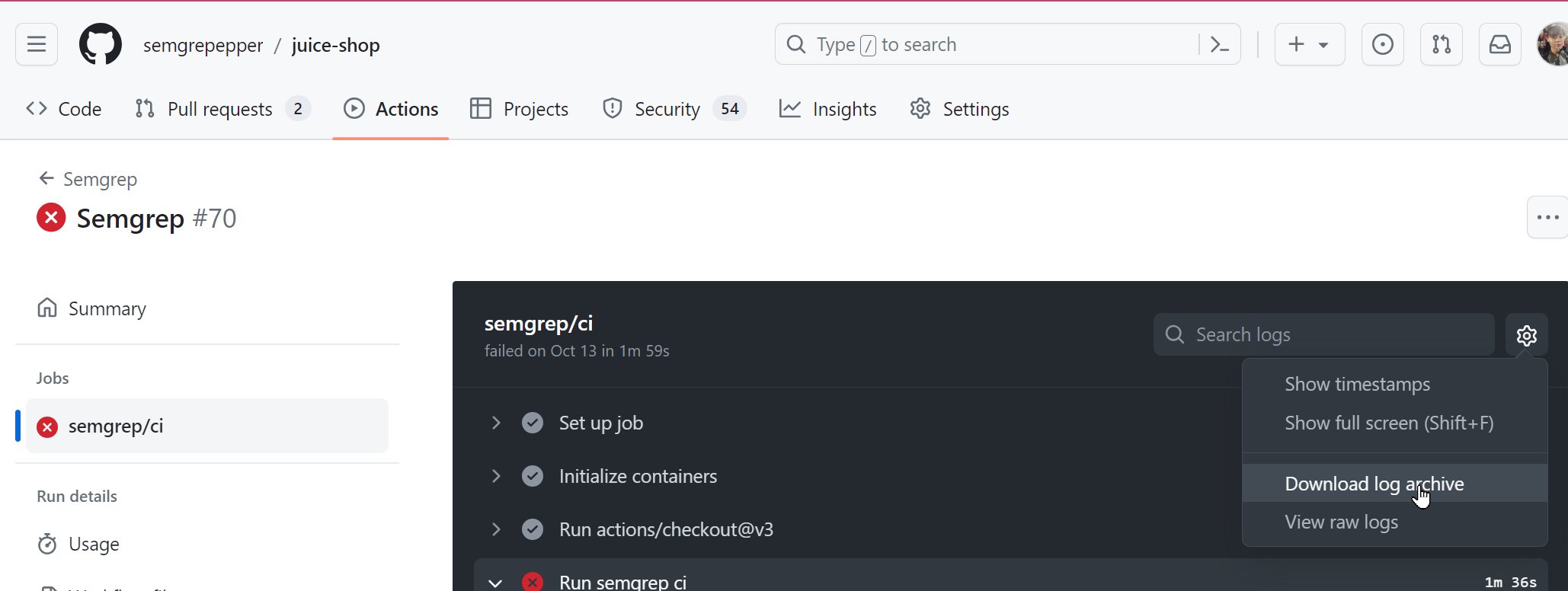 You have successfully downloaded a GitHub Actions log. You can send this as part of your ticket to [Support](/support).
## Additional references
You have successfully downloaded a GitHub Actions log. You can send this as part of your ticket to [Support](/support).
## Additional references